Instruction for Creating Games in Extensive Form with Tree Editor

  1. Basic Elements of Tree Editor

  2. Creating a New Tree

    1. Determining Sequence of Events
    2. Editing Chance Probabilities
    3. Editing Move Labels on Branches
    4. Editing Player Label
    5. Editing Information Sets
    6. Deleting Information Sets
    7. Editing Terminal Nodes (Payoffs)
    8. Rearranging Positions of Nodes
    9. Viewing Node Numbers
    10. Testing a Game in Extensive Form

  3. Saving a File – Tree Diagram
    1. Saving a New Game Tree
    2. Saving an Existing Game Tree

  4. Running an Experiment
    1. Determining Session Parameters
    2. Experimenter/Instructor Viewing the Game

  5. Instructions to Players given by the Instructor
    1. Players Connecting to the Experiment
    2. Opening a Game by Players
    3. Waiting for other Players to login
    4. Choosing Moves by Players
 
  1. Basic Elements of Tree Editor
You can set up the experiment by clicking on  


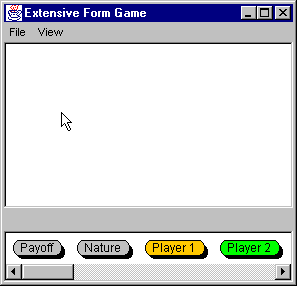
The editor for designing games in extensive form games appears on the screen. The and icons are the main building blocks:


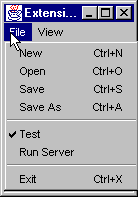
The File menu allows the instructor to create new files, open existing files, save files, test games, run games, and to exit from the tree editor.
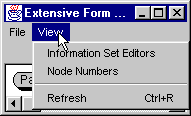
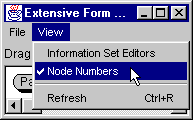
The View menu allows the instructor to determine the information set for each player, to view node numbers, and to refresh the screen.
The Payoff icon represents a terminal node and allows the instructor to determine the players' payoffs for each possible outcome.
The Nature icon allows the instructor to determine probability distributions over exogenous events. 
 
The Player icon allows the instructor to determine who is involved (i.e. the set of players).
Return to the Table of Contents
  1. Creating a New Tree

To create a new tree

From the File menu, choose New

  1. Determining Sequence of Events
To start editing the tree: 
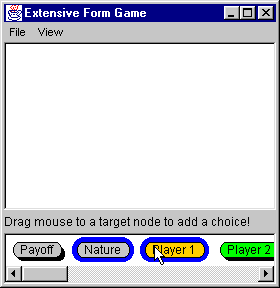
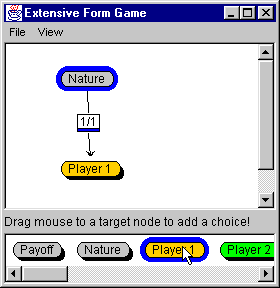
  • click the mouse button on a nature icon or a players' icon at the bottom of the applet and drag the mouse to a target node to create a branch. 
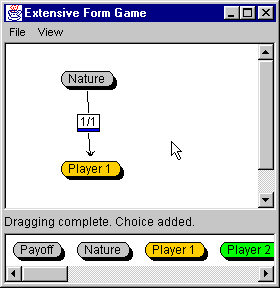
In the Figure below the nature icon was dragged to Player 1 icon because the selected game starts with a random move.
The branch was created that connects two points, a chance node (i.e. Nature) and a decision node (i.e. Player 1). 
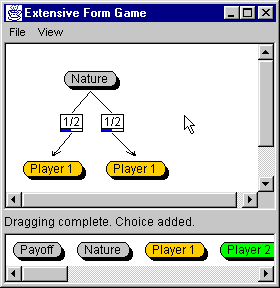
To add another branch following the root: 
  • click on the root of the tree (i.e. Nature's icon in the left Figure), and drag the mouse to a target node at the bottom of the editor (i.e. Player 1's icon in the left Figure). 
To add any branch: 
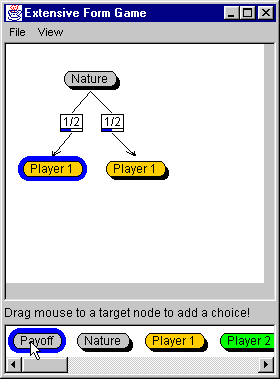
  • click on a node in the tree and drag the mouse to a target node at the bottom of the editor.
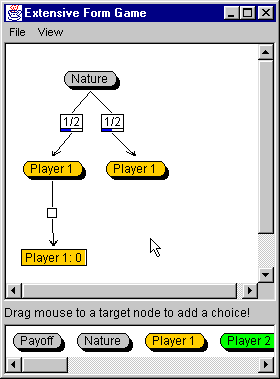
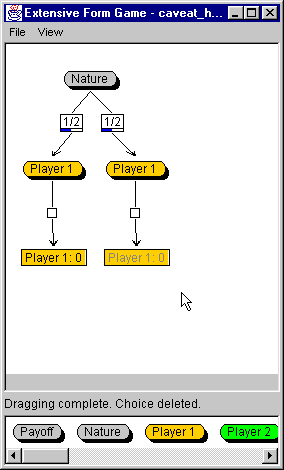
In the Figure below by clicking on the Player 1 icon and dragging the mouse to the Payoff icon we created the next branch in the path of play that would be determined by Player 1.
To continue adding branches: 
  • click on a node in the tree and drag the mouse to a target node at the bottom of the editor (See Figure below).
Return to the Table of Contents  
To delete a branch: 
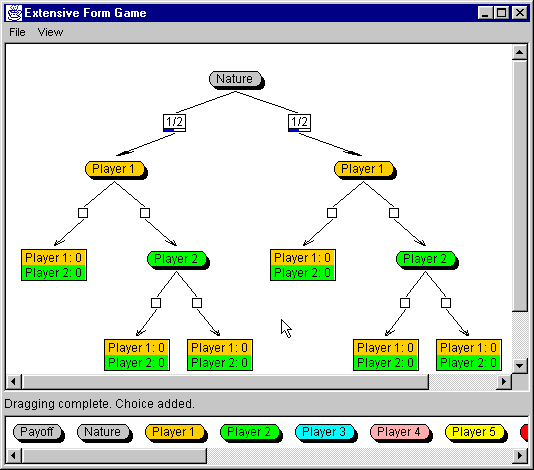
  • click the mouse on a predecessor node (i.e. Player 1), and drag it to a successor that you want to delete (i.e. Player 2)
Note that both, Player 1’s and Player 2’s icons have to be highlighted in blue. 
A branch that connects the predecessor and the successor decision node is erased as well as the successor decision node (in our example Player 2 decision node).  

Note that the payoffs are updated simultaneously on all the terminal nodes when a player is deleted from the tree diagram.

Return to the Table of Contents  

  1. Editing Chance Probabilities
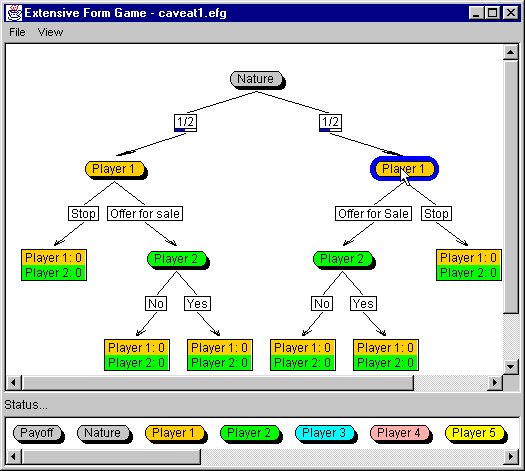
 A chance node has a default label "Nature" (the name can be changed by the instructor), and the branches that follow the chance node would be determined by some random mechanism, according to the probabilities that are shown on the branches (by default each branch has an equal weight).  

To edit chance probabilities on branches:  

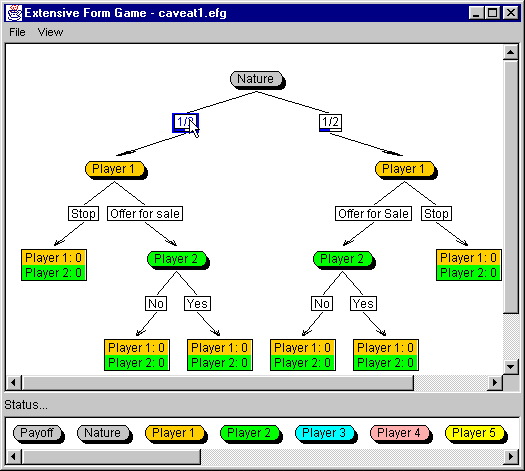
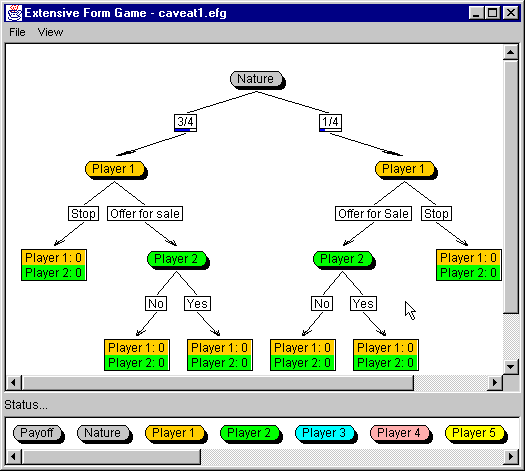
  • right click a rectangle that is located in the middle of a branch (in our example the left rectangle with a chance probability 1/2 was selected).


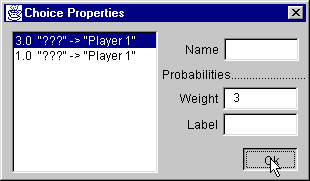
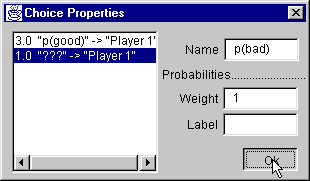
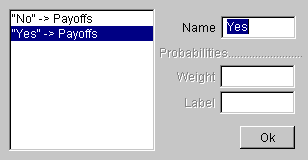
A window with Choice Properties appears. 
  • Write the appropriate weight in the Weight box. 
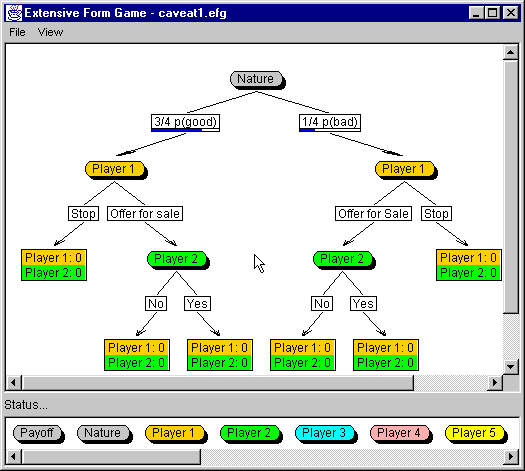
In our example the left choice was given the weight 3, and the right alternative remained with weight 1 (3/4 probability for the left alternative, and 1/4 probability for the right alternative). Note that "???" is replaced with "3".  
  • When you finish, click OK
Every alternative at a chance node can also have a name.  
  • Write the appropriate label in the Name box. (Note that naming alternatives is optional.) 
The left alternative was labeled P(good), and the right one P(bad).  
  • When you finish, click OK
Return to the Table of Contents  

  1. Editing Move Labels on Branches
Each alternative at a node that is controlled by a player should have a move label. To edit move labels on branches: 
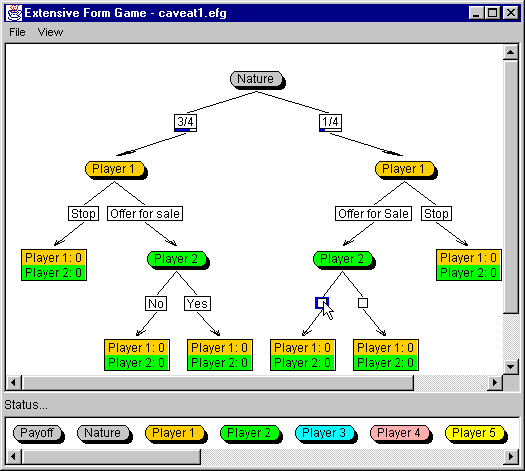
  • right click a rectangle that is located in the middle of a branch (in our example the rectangle on the left branch of Player 2).
 
 
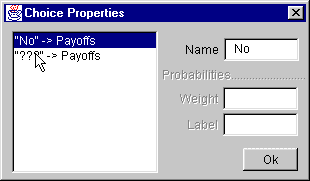
A window with Choice Properties appears.  
  • Write the appropriate label in the Name box. 
In our example the left choice was labeled "No". Note that "???" is replaced with "No"., and it is followed by the name of the successor node. 
  • After labeling the first branch move the cursor to the next line 
  • Write the appropriate name in the Name box. 
  • When you finish labeling each alternative at a node that is controlled by a player, click Ok
The changes will be updated on the branches like in the Figure below.
Return to the Table of Contents  
  1. Editing Player Label
Each non terminal node has by default a player label that is in the set {Nature, Player 1, Player 2,…, Player 16}. To edit a Player label, or a Nature label: 
  • right click a player's icon that indicates a name of a player who controls the node (i.e. Player 1 was selected in Figure below). 


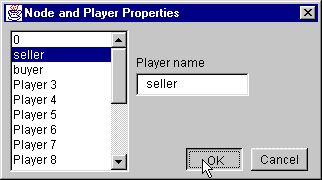
 A window with Node and Player Properties appears:  
  • write the appropriate label in the Player name box. 
In our example Player 1’s label was replaced with "Seller", Player 2's label with "Buyer", and Nature with "0".  
  • When you finish renaming the players, position the cursor on the player that you start with (in our example Player 1/seller)
  • Click Ok
 

Note that the labels are also automatically updated at the bottom of the editor, and in all the terminal nodes (i.e. payoffs).
Return to the Table of Contents  

  1. Editing Information Sets
To edit information sets: 
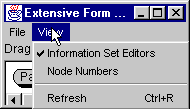
  • select View, and 
  • select Information Set Editors
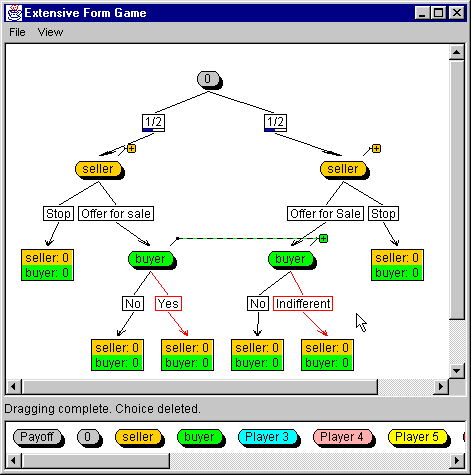
When Information Set Editors is selected, every node controlled by a player receives a second label (i.e. a plus sign above the node) that allows the instructor to specify the information state. (Note, that Nature and a player that appears only once in the tree diagram do not receive plus signs.)  

To represent the set of nodes that cannot be distinguished by a player  

  • click on the plus sign of player i (in our example the buyer) and drag it to the target plus sign of player i


By connecting the nodes in this set, the information set of player i (i.e. the buyer) is depicted by a dotted line in the same color as player i (i.e. the buyer).


The set of move labels following the two nodes must be the same if the two nodes are controlled by the same player in the same information state. If move labels do not match, they are highlighted red to warn the instructor that the game is not meaningful, and the program will not allow the instructor to play the game. 
Return to the Table of Contents  
  1. Deleting Information Sets
To delete the set of nodes that cannot be distinguished by a player 
  • click on the plus sign of player i (in our example the buyer) and drag it to the target player i (the buyer) just below the plus sign. The dotted line will disappear
 
Return to the Table of Contents  
  1. Editing Terminal Nodes (Payoffs)
Each terminal node has a label that specifies for each player i , a number that is interpreted as a payoff for player i , when this node is the outcome of the game. By default all the payoffs are set to zero.  

To change the payoffs  

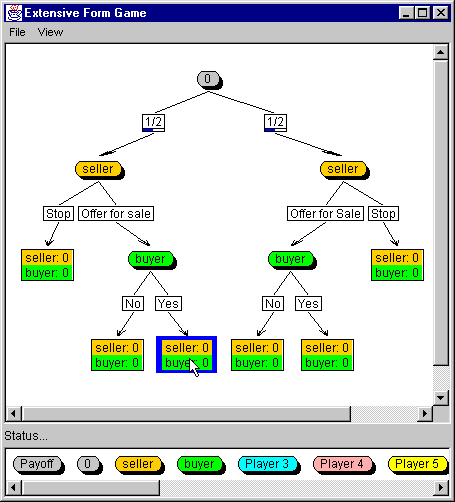
  • right click on the appropriate terminal node. 


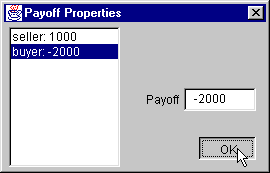
  A window with Payoff Properties appears. 
  • Write the appropriate payoff for each player in the Payoff box. 
 
Return to the Table of Contents  
  1. Rearranging Positions of Nodes
To reposition a node  
  • click the mouse on the node that you want to reposition and drag it after the node that you want the node to be placed (i.e. the arrow has to be placed after the node like in the Figure).
Return to the Table of Contents  
  1. Viewing Node Numbers
Each node is given a number, which allows the instructor to distinguish between nodes when the experiment is conducted, and the data analyzed.  

To view Node numbers 

  • select View, and 
  • select Node Numbers. 
Return to the Table of Contents  
  1. Testing a Game in Extensive Form
The test option under File menu allows the instructor to conduct the game before releasing it .  

The instructor will be able to observe:  

  1. How players will see the game
  2. Detect possible errors (for example: disconnected tree , proper labeling of move labels)
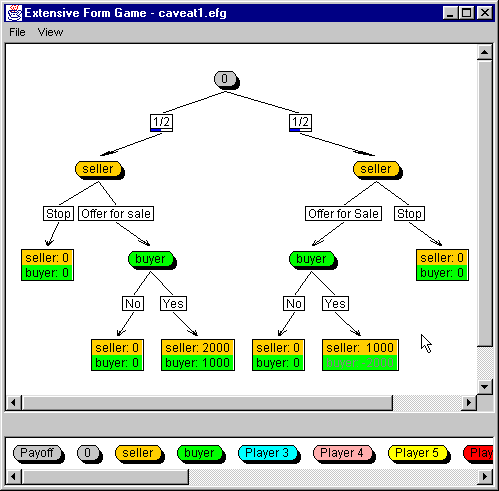
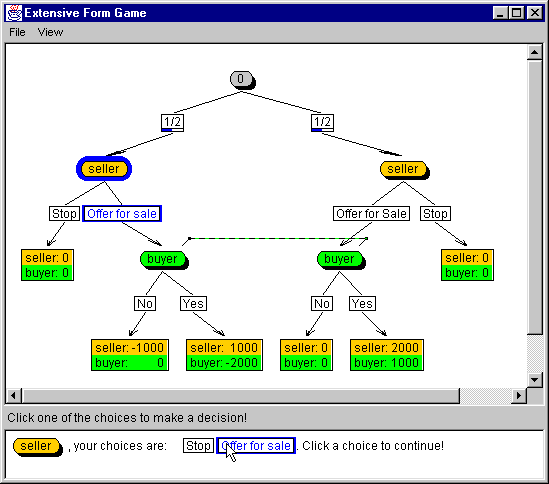
In the Figure below the test game conducted by the instructor on Caveat-Emptor game is shown:
after Nature chose the left node, the seller chose "Offer for Sale". 


The buyer who has two nodes with the same information state does not know which move was chosen. For example, when he chooses "Yes", it is highlighted on both branches. 


The buyer selected "Yes" in the example below and the results of the game show that the seller earned 1000 in this game, and the buyer ended with –2000.
 
Return to the Table of Contents
 
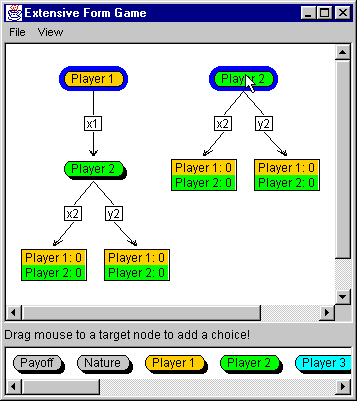
The program permits creating disconnected trees as an intermediate step in representing a game in an extensive form.  

To connect the tree: 

  • click the mouse on the predecessor node (i.e. Player 1 in the Figure below), and drag it to the successor node (Player 2 in the Figure below).
 
 
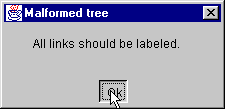
 However the program does not permit disconnected tree, and displays the message: " More than one root nodes have been found" after the test has been performed.   


If the instructor runs the test on the game in which at least one alternative at a node that is controlled by a player does not have a move label, the game cannot be conducted.
Return to the Table of Contents  
  1. Saving the File – Tree Diagram
  1. Saving a New Game Tree
  1. From the File menu, choose Save As
  2. In the File name box, type a name of the file. The program saves the tree in the current drive and directory. 
  3. If you want to save the tree to a different drive or directory, do one of the following: 
    • Select a drive and a directory 
    • Type a file name in a "File name" box 
Choose the Save button.
Return to the Table of Contents  
  1. Saving an Existing Game Tree
  1. From the File menu, choose Save.
  2. In the File name box, the name of the existing tree appears. The program saves the tree under the existing name in the current drive and directory. If you want to change the name you can type a new name in the File name box.
  3. Choose the Save button.


  1. Running an Experiment in Extensive Form
To run the experiment follow the procedure decribed below:
  • Click on File menu and select Open
  • Choose the saved file representing the game you want to run
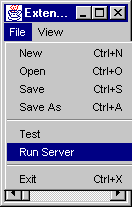
  • Click on File menu, and select Run Server option.
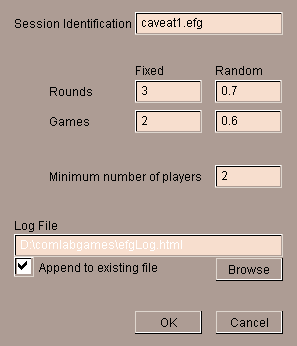
(i.e. the window with Game Server Properties appears on the screen like the one presented below.)
Return to the Table of Contents  
  1. Determining Session Parameters
Session Identification:  

Provides a box for typing a name for a game. By default the file name of the game in the extensive form (i.e. the tree) will appear.  

Rounds: 

  • For a fixed ending of a game: type the total number of rounds that a game should be repeated in a box named "Fixed" 
  • For a random ending of a game type the probability (i.e. any number in the interval [0,1]) to continue the game to the next round in a box named "Random".
Games: 
  • For a fixed number of games: type the total number of games that will be played in a box named "Fixed".
  • For a random ending of games: type the probability (i.e. any number in the interval [0,1]) to continue with a new game (i.e. change the assigned roles) 
Minimum number of players:  

Type total number of players participating in the experiment. By default the number needed to start a single game appears in the box (i.e. the number of players defined in the tree)  

Log File:  

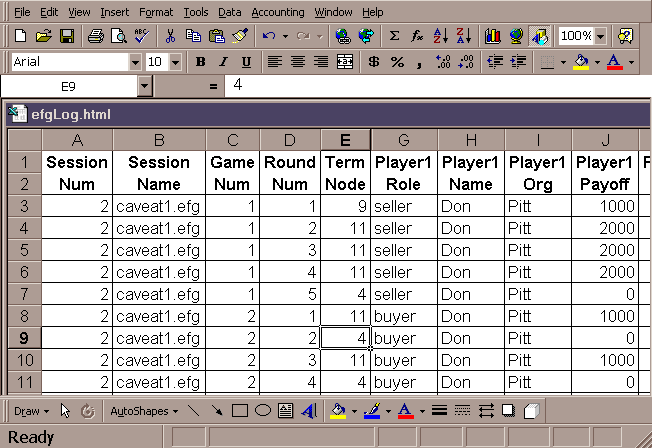
By default efgLog.html file appears in the box with the option to append it to the existing file. To change the default name click on Browse.The output file can be read by standard spreadsheet programs (i.e.Excel) 

  • Click OK button to start the experiment


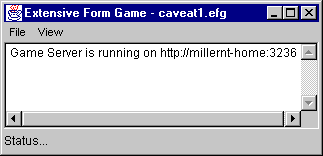
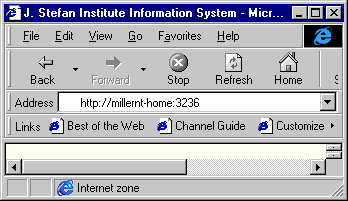
The window with the instructor’s computer address appears on the screen like the one below.  
  • Provide this address to students in order for them to connect to the experiment. 
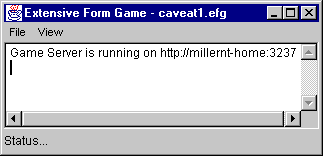
If the instructor runs several experiments (i.e. games) from the same computer at the same time, the number at the end of the address changes (see the Figures below).
Return to the Table of Contents  

  1. Experimenter/Instructor Viewing the Game
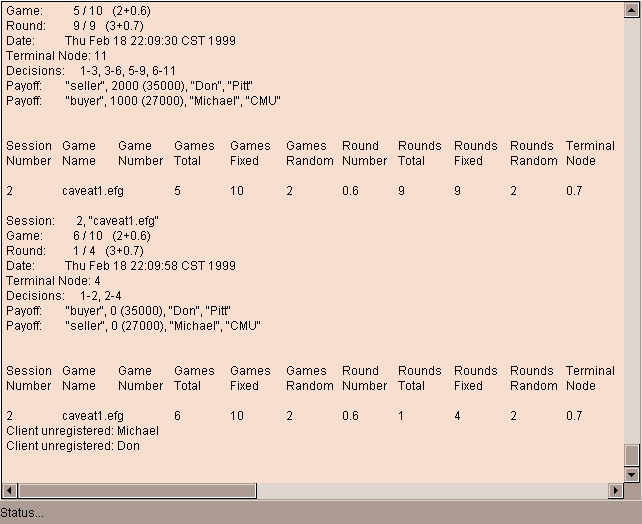
The instructor can follow the game on the window that opens at the time he starts the game.
The output file "EfgLog.html" can be imported into standard spreadsheet program (Excel) and looks like the example below:
Return to the Table of Contents
 

  1. Instructions to Players given by the Instructor


  1. Players Connecting to the Experiment
The following instructions should be given to players:
    Players should open Netscape Navigator version 4.06 (or later). Players have to write the address provided by the instructor (in our example: http://millernt-home: 3236), and press return.
Return to the Table of Contents  
  1. Opening a Game by Players
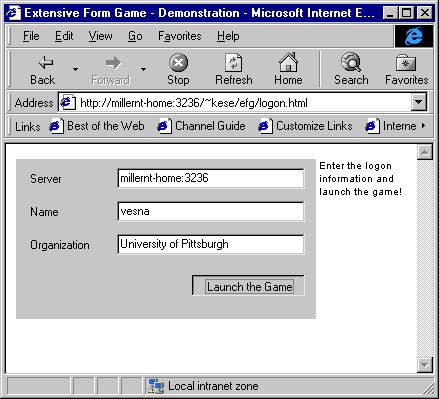
After connecting to the address given by the instructor, a player login information appears on the screen: 
  
  • Change the address in the Server box if the address in Browser’s "Address" does not correspond to the address in "Server"
  • Write a name or ID number in the Name box 
  • Write your institution or affiliation in the Organization box
  • After writing all the necessary information described above click on Launch the Game to open it. 
Return to the Table of Contents  
  1. Waiting for other Players to login
After a player launches the game, the game in the extensive form (i.e. a tree) appears on a player’s screen with the message: "Wait for more players to join the game". When a minimum number of players required by the game structure connects to the game (in our example the minimum number of players are two, a seller and a buyer), the players matched for that session can start selecting the moves. 
Return to the Table of Contents  
  1. Choosing Moves by Players
When the minimum number of players has been connected to the game, a randomly assigned player’s name or number appears at the bottom (i.e. in our example "seller"), so that a participant knows the role he was assigned to.
The choices appear next to the assigned player’s name or number at the bottom of the window when the player has to make the next move.  

Players make their choices by  

  • clicking on one of the choices presented at the bottom of the window, and that choice is highlighted in blue (i.e. In the game tree of Figure below, it is Seller who chooses a first move after Nature (0). He can choose between "Offer for Sale", and "Stop" by clicking with the mouse on the appropriate choice. If he chooses "Offer for Sale" then it will be a "buyer" who makes the next move. If he chooses "Stop", then the buyer does not make a choice, and the message appears at the bottom showing the payoffs for the players. For that round, and the game.) 
The message "Round 1 of 1+P(0.7) in Game 1 of 1" informs the players about the duration of an experiment. (i.e. It is the first round, the probability to continue to the next round is 0.7, and the player will play only one game).
 
"Buyer" makes the next move and the message appears next to the assigned role (i.e. the choices in our example are "No" and "Yes").
 A player selects a choice by
    clicking on one of the available choices, and that choice is highlighted in blue. 
 
When the game ends, the terminal node that is reached is highlighted in blue and the outcome corresponding to that terminal node is shown at the bottom of the window for the players paired for that game. 
 
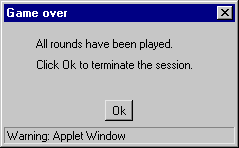
When the game is over, players will be informed with the message presented in the Figure.
Return to the Table of Contents