I.                   TRADING GAME


  1. Designing trading game

( Right click on a Game: 05_general_equilibrium.mgd to download it)


NOTE: Function editor can be accessed with mouse right click.


1. Adding asset.

a.       Drag and drop asset into a design window to create a market.

b.      Double click on asset to rename it to asset_wood. Note this is not necessary. Markets can be named by the default name.


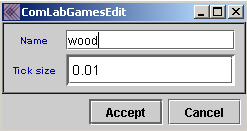
c.       Open asset_wood  by double clicking on the edge or by selecting asset_wood_selected or clicking on edit to choose a tick size:

asset_wood_tick


d. Repeat the steps for asset_clay.


2. Creating 01_player_type.gif


a. Drag and drop a 01_player_type.gificons into a design window.

b.Double click on the edge of01_player_type.gif to rename it to builder. Then repeat the process forwood_supplier and clay_supplier.


c.  01_player_type.gif serves the same function as 03_player.gifin extensive and strategic form. In order to determine conditions for each market you have to use 01_player_type.gif. It also allows more than one subject per session to have the same role.


3. Adding variable.


a.  Create v_builder_profit to capture the profit during the game as follows:

·   Drag and drop a variable and rename it to v_builder_profit

·   Open v_builder_profit by double clicking on the edge of the icon or by selecting v_builder_profit and clicking on edit.

·    Select type_real

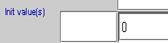
·   Leave initial value empty.

v_profit_int_value.

·   Select variable_multiple in order for each subject to get a different draw.

·   Repeat the steps for v_wood_profit, v_clay%20profit, v_builder_costs and v_price. A fast way is to duplicate v_builder_profit by selecting v_profit_selectand clicking on duplicate. Then rename the new variable.


·   Create v_clay_endowment and v_wood_endowmentto record the accumulated endowment by builder with the following properties:

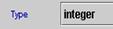
-    variable_type_integer


v_initial_value_end. Clay and wood endowment is set to zero. Once a builder buys the raw material it gets updated by appropriately defining it in transaction_event_variables in the builder editor (see  point 3 below).


3. Open 01_player_type.gif to update the trading conditions for each player

a. Open builder by double clicking on the edge of builder icon.


b. The following conditions should be selected or written in for builder.

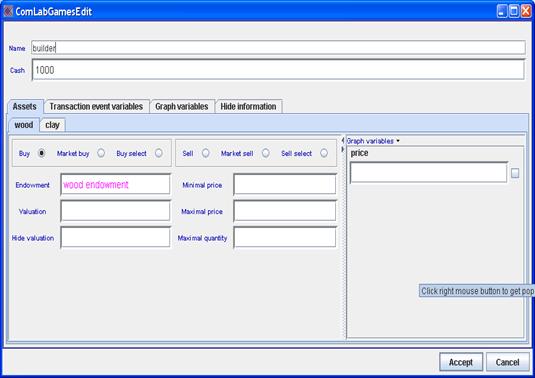
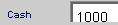
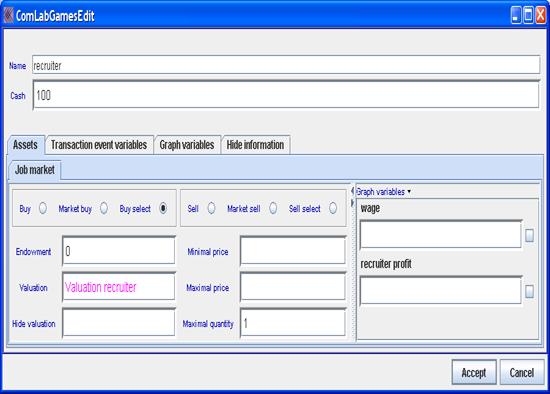
- cash . Cash allows subjects to buy items. Subjects would be able to purchase items up to the cash amount stated in cash . In our case a builder is allocated 1000 units.


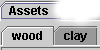
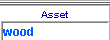
- Under assets all the created assets are listed. The lighter gray color shows the current page. In this example asset_wood_gray is the current page.

- Select select_buy because builder is allowed only to buy wood .(The other trading options for buying are asset_market_buy and buy_select. asset_market_buy means that builder can not set a price. The current best price at the market determines the sale’s price. builder can only change the quantity if she is willing to buy. buy_select allows builder to select a particular outstanding seller from whom to buy a product and not to the buyer with the best price. Similar explanation can be given for selling )

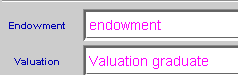
- Choose choose_endowment that a builder starts with. Select the wood endowment by right clicking in the editor and selecting wood endowment from the list of variables. The other option is to type wood endowment, select it and use “Shift+Ctrl+v” at the same time to color it to rose color.

- Valuation is empty: valuation_empty  because builder does not value any of the purchased goods.


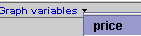
- Graph variables: Select v_priceunder “graph variables”: graph_price to graph the current transaction price. The selected variables will be graphed for a particular market if the graph option was selected on that market.


- Repeat the steps for clay_gray.


c. In order for v_builder_costs, v_builder_profit, v_clay_endowment, v_price, and v_wood_endowmentto be updated with each transaction, click on transaction_event_variables .

- click on transaction_event_variables and select the appropriate Transaction event variables. Then write a condition for each of them:


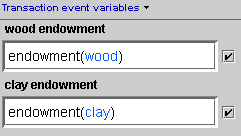
  • v_wood_endowment and v_clay_endowment are defined as follows:

transaction_endowment

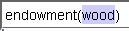
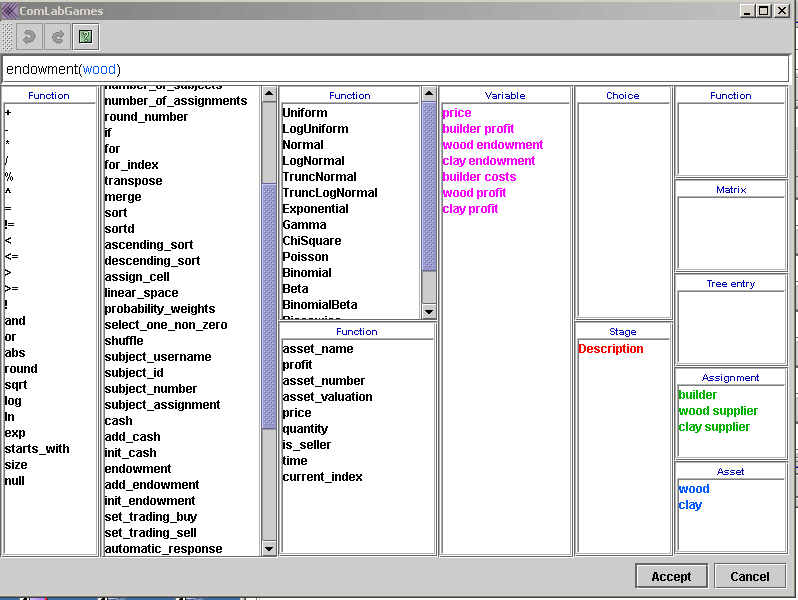
The function endowment() means current endowment and can be selected from the function editor. Inside the brackets the appropriate asset has to be selected by double clicking on asset_wood_function in the function editor or by writing wood, selecting it asset_wood_choice and clicking at the same time “Ctrl+Shift+a”. “a” stands for asset.

Also check_mark is selected next to each of the function in order for the calculation to be used in the variables : v_builder_costs and v_builder_profit.


-          Note that it was necessary to define v_wood_endowment and v_clay_endowment variables. In v_builder_profit endowment(wood) could have been used directly.


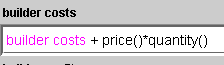
  • Cumulative v_builder_costs is defined in the following way:

function_builder_cost where builder costs captures the accumulated costs and price()*quantity() multiplies current transaction price with the transaction quantity and it is not asset specific.


Also check_mark is selected next to builder cost function in order for the calculation to be used in v_builder_profit. If  check_mark is not selected the costs are not updated in the later calculations within the same transaction.

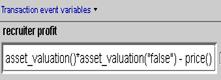
  • v_builder_profit is calculated in the following way: profit_function

where the revenue to the builder is calculated as wood endowment raised to the power 0.333 and multiplied by clay endowment raised to the power 0.333. To get the profit builder costs are subtracted.


Note we could have used endowment(wood) instead of wood endowment and endowment(clay) instead of clay endowment.


  • price() captures current transaction price.


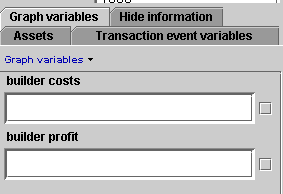
d.      Use graph_var to graph variables for all markers. In our example the builder profit and builder costs will be shown on each market. graf_variables

If you want to graph it only for a specific market use the option  under asset_grapf


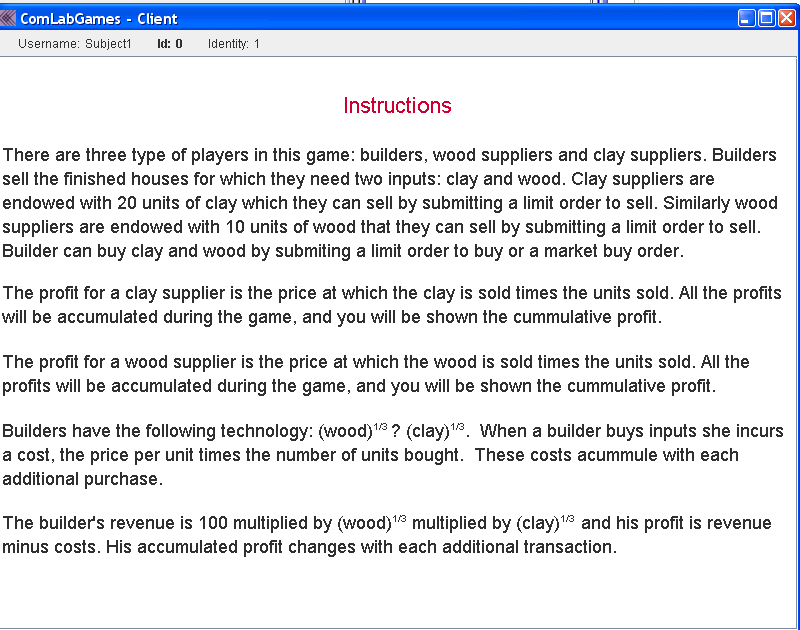
4. Adding instructions

1. Drag and drop a stage.


2. Open the stage and write instructions.


3. Make sure that you select 02_instructions.gif at the bottom of the instruction page.


4.If you want everybody to see and  make decisions on the same page, drag and drop 01_player_type.gif from 03_passive.gif  (03_passive.gif means that those 01_player_type.gif that are left in 03_passive.gif do not see the information in that stage)

04_active_all.gif


To 05_active.gif


06_active_player.gif


- If you want some assignment just to observe information in the stage but they cannot make decisions drag and drop 01_player_type.gif into 06_observe.gif. In the case of instructions we could have dropped builder, wood_supplier, and clay_supplier into 06_observe.gif box.

- 07_glance.gif means that any value of a variableor 08_choice.gifthat is inserted into stage is not observed by a 01_player_type.gif that is placed in that box.


- To create a new page within a stage, click on plus and a new page is created: new_page


Write the instructions and select the assignment which will see the page.

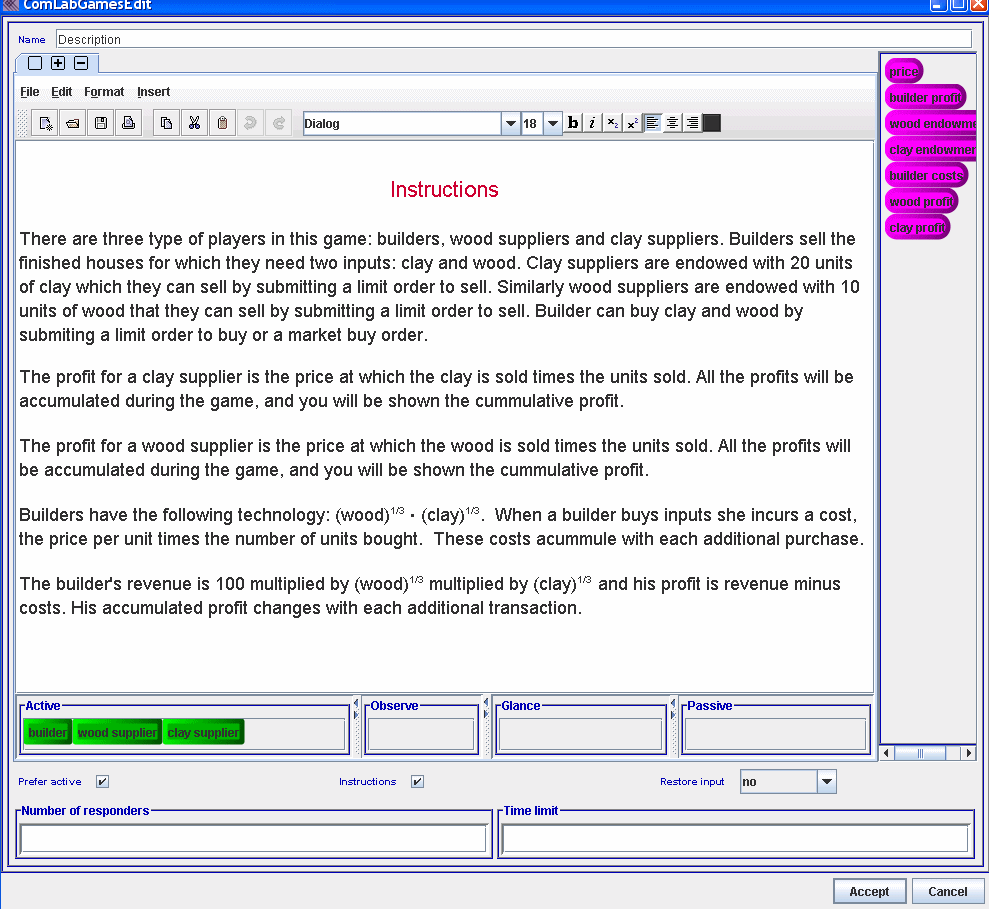
This is the example of a description_stagestage. Click here to see how it looks when designing a game. Click here to see how subjects will see the instructions.  To close the instructions, just click on x. To open, click on description_market that is located within the market or within a stage, depending on a design of a game. In the  05_general_equilibrium.mgd (right click to download the game) there is only a trading window and description_market.